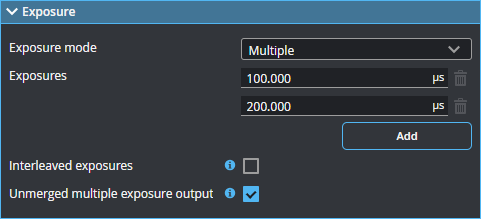
Multiple Exposure
The sensor can combine data from multiple exposures to create a single profile (G2, G4, and G5) or 3D scan (all families). Multiple exposures can be used to increase the ability to detect light and dark materials that are in the field of view simultaneously. Note that you can optionally output the scan data for the different exposures as separate profiles or surfaces, but only if uniform spacing is disabled.
You can define up to five exposures (three for G3 sensors), with each set to a different exposure level. You add exposures using the Add button, and remove them using the trashcan icon.
For each exposure, the sensor will perform a complete scan at the current frame rate making the effective frame rate slower. For example, if two exposures are selected, then the speed will be half of the single exposure frame rate. The sensor will perform a complete multi-exposure scan for each external input
The resulting scan data is a composite created by combing data collected with different exposures.
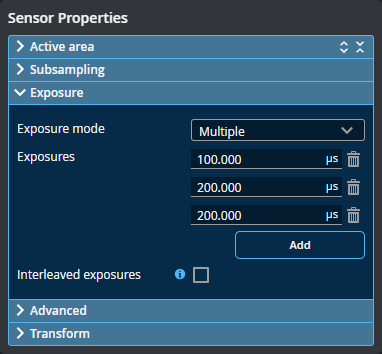
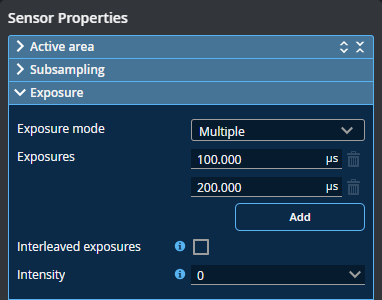
If you have enabled intensity in the Scan Mode panel, you can use Intensity (Intensity index on some models) to choose which exposure the sensor uses for acquiring intensity data. This lets you choose the exposure that produces the best image for intensity data.
| Setting | Description |
|---|---|
| Exposure Mode |
Single, Multiple, or Dynamic. Set to Multiple. |
| Intensity |
Chooses which exposure is used for intensity data. Choose the step that provides the best data. Only displayed if Acquire intensity is enabled on the Acquire page; for more information, see Scan Modes and Intensity. |
| Unmerged Multiple Exposure Output |
This setting is only available when uniform spacing is disabled (for more information, see Uniform Spacing) and in Profile mode (see Scan Modes and Intensity).
|
| Interleaved exposures | Outputs the exposures in an interleaved sequence to optimize maximum frame rate. |