Triggers
A trigger is an event that causes a sensor to acquire a single frame or image.
When a trigger is processed, the sensor's laser or LED light strobes and the camera exposes to produce an image. The resulting image is processed inside the sensor to yield scan data.
The sensor can be triggered by one of the sources described below.

|
If the sensor is connected to a Master 400 or higher, encoder and digital (external) input signals over the IO cordset are ignored. The sensor instead receives these signals from the Master; for encoder and digital input pinouts on Masters, see the section corresponding to your Master in Master Network Controllers. If the sensor is connected to a Master 100 (or no Master is used), the sensor receives signals over the IO cordset. For information on connecting encoder and digital input signals to a sensor in these cases, see Encoder Input and Digital Input, respectively. |
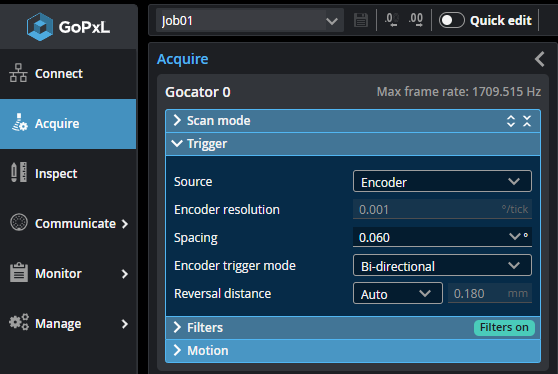
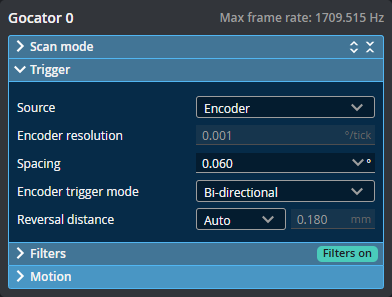
When using encoder triggering (available with line profilers), the current encoder resolution is displayed in the Encoder resolution drop-down as a reference when setting trigger spacing.
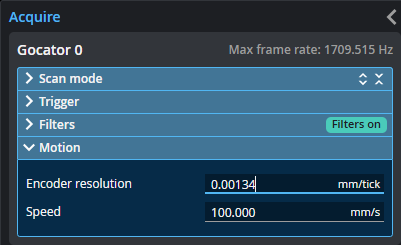
To set the encoder resolution, expand the Motion section and set the value in Encoder resolution.
| Trigger Source | Description | ||
|---|---|---|---|
| Time |
Sensors have an internal clock that can be used to generate fixed-frequency triggers. The external input can be used to enable or disable the time triggers. |
||
| Encoder |
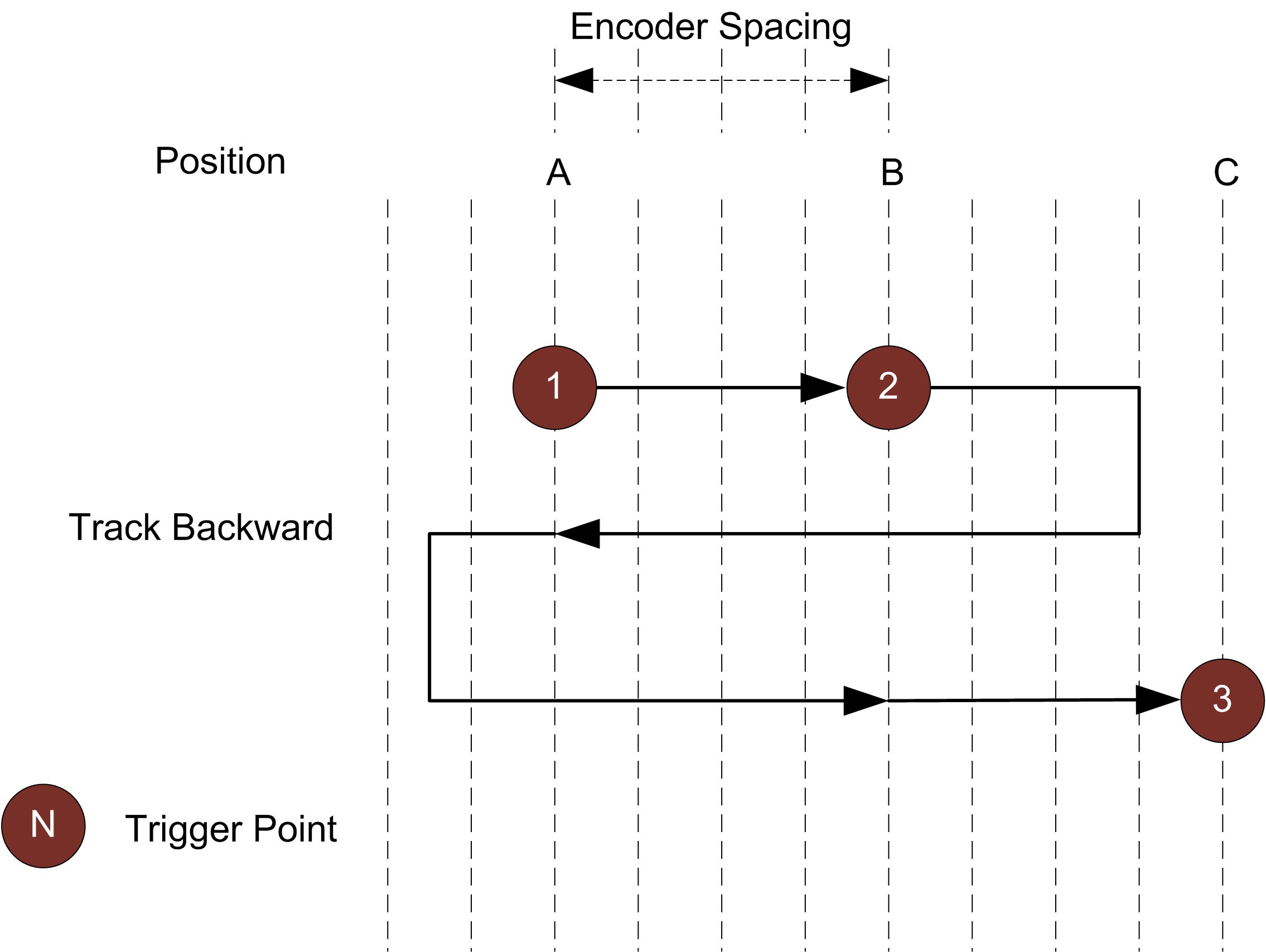
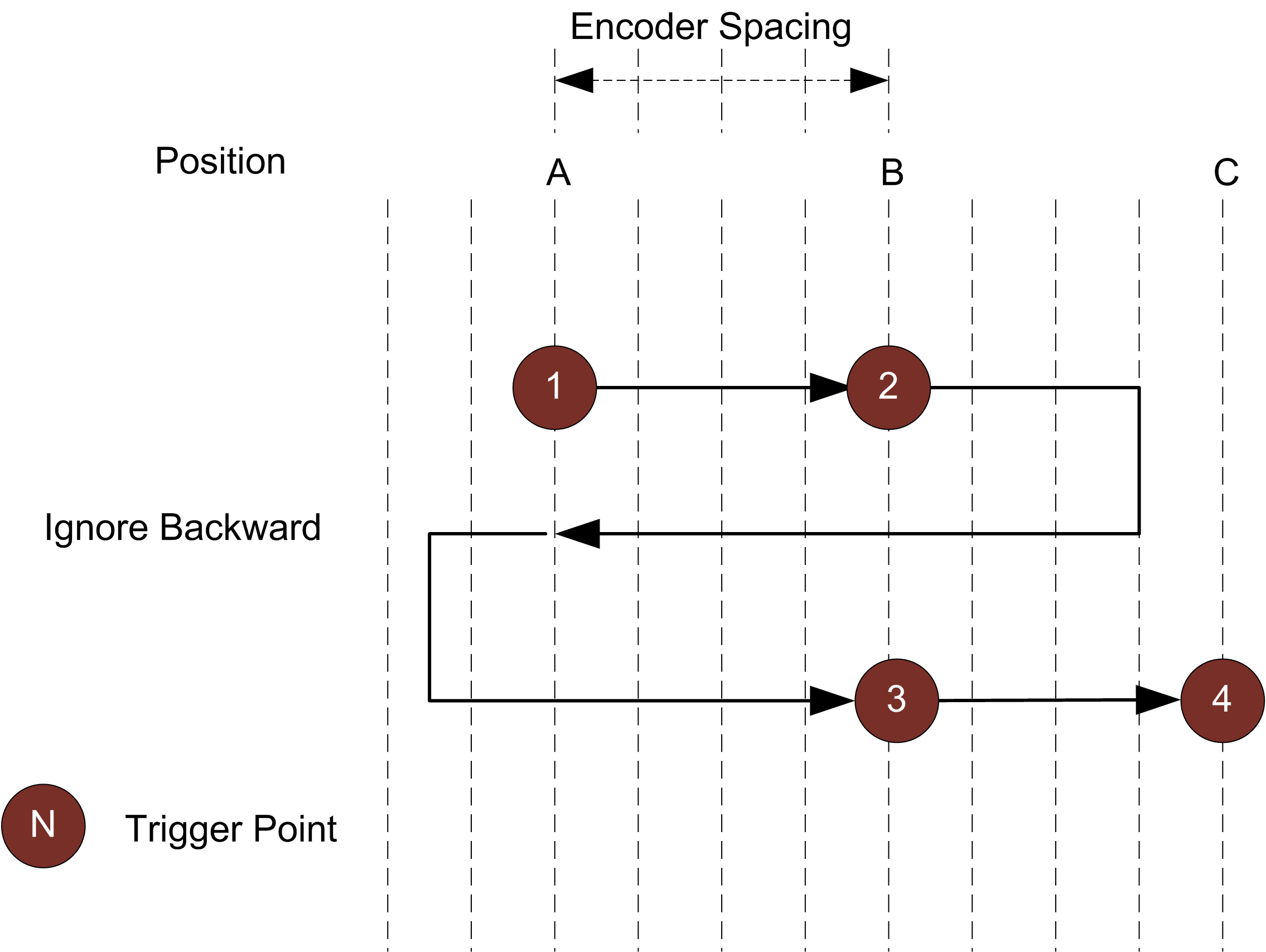
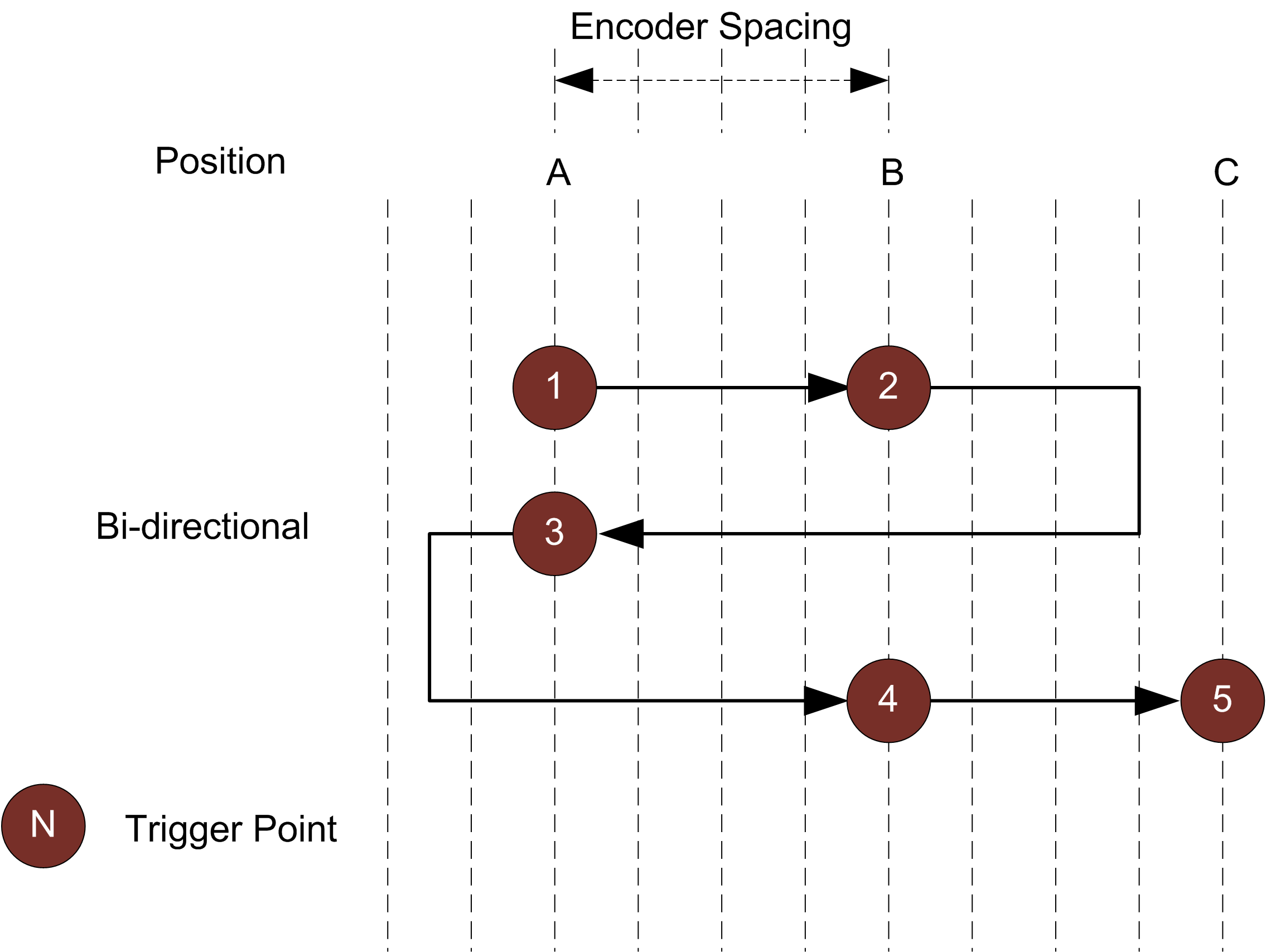
An encoder can be connected to provide triggers in response to motion. Three encoder triggering behaviors are supported. These behaviors are set using the Behavior setting. Note that trigger points are indicated by a circle containing a number in the illustrations below. Track Backward A scan is triggered when the target object moves forward. If the target object moves backward, it must move forward by at least the distance that the target traveled backward (this distance backward is "tracked"), plus one encoder spacing, to trigger the next scan.
Ignore Backward A scan is triggered only when the target object moves forward. If the target object moves backward, it must move forward by at least the distance of one encoder spacing to trigger the next scan.
Bi-directional A scan is triggered when the target object moves forward or backward.
When triggers are received at a frequency higher than the maximum frame rate, some triggers may not be accepted. Use the Trigger Drops indicator in the Health panel on the Reports page to check for this condition; for more information, see Monitor - Measurement Stats, Health & Performance. The external input can be used to enable or disable the encoder triggers. For information on the maximum encoder rate, see Maximum Encoder Rate.
|
||
| External Input |
A digital input can provide triggers in response to external events (for example, a photocell). The external input triggers on the rising edge of the signal. When triggers are received at a frequency higher than the maximum frame rate, some triggers may not be accepted. Use the Trigger Drops indicator in the Health panel on the Reports page to check for this condition; for more information, see Monitor - Measurement Stats, Health & Performance. For information on the maximum input trigger rate, see Maximum Input Trigger Rate. |
||
| Software |
A network command can be used to send a software trigger. For more information, Protocols (PLCs and other hardware). |
For examples of typical real-world scenarios, see Trigger Examples.
Trigger Settings
After you choose the trigger source, configure the other parameters in Acquire page > Trigger section.
| Parameter | Trigger Source | Description |
|---|---|---|
|
Source |
n/a |
The source for triggering the acquisition of frames (Time, Encoder, External Input, or Software). |
|
Trigger at maximum frame rate |
Time |
When this is enabled, frames are acquired at the maximum possible frame rate. |
|
Frame Rate |
Time |
Controls the frame rate. Fractional values are supported. For example, 0.1 can be entered to run at 1 frame every 10 seconds. Choose one of the following: Trigger at maximum frame rate: The sensor triggers at the maximum available frame rate. The frame rate is displayed after this option and also toward the top of the configuration area on the Acquire page. Manually configure: Lets you provide a custom frame rate. |
| Encoder resolution | Encoder |
A read-only field displaying the current encoder resolution. You set encoder resolution this in the Motion section on the Acquire page. You can also choose to automatically calibrate it during alignment; for more information, see Aligning Sensors with up to 5 Degrees of Freedom. |
|
Spacing |
Encoder |
Specifies the distance, along the Y axis, between triggers. Internally the sensor rounds the spacing to a multiple of the encoder resolution. |
|
Encoder trigger mode |
Encoder |
Specifies how the sensor is triggered when the target moves. Can be Track Backward, Ignore Backward, or Bi-Directional. For more information, see Encoder in Trigger source descriptions. |
| Reversal Distance |
Encoder |
When Encoder trigger mode is set to Bi-Directional, use this setting to ignore jitter or vibrations in your transport system by specifying what distance the target must travel before a direction change is triggered. One of the following: Auto: The distance is automatically set. Custom: Set the distance (in millimeters). Various functions in the sensor depend on this value to explicitly determine the point where direction change is triggered. Set this value larger than the maximum vibrations you see in your transport system. |
|
Gate on External Input |
Time, Encoder, Software |
You can use external input to enable or disable data acquisition in a sensor. When this option is enabled, the sensor will respond to time, encoder, or software triggers only when the external input is asserted. This setting is only displayed when the sensor is in Profile mode. See Digital Input for more information on connecting external input to sensors. |
|
Units |
External Input |
Specifies the unit. |
| Trigger Delay | External Input |
Specifies the amount of time or the distance the sensor waits before producing a frame after the external input is activated. This is used to compensate for the positional difference between the source of the external input trigger (for example, a photocell) and the sensor. |
|
|
Depending on the surface generation settings, some trigger options may not be available. |